
Connect Apple Health data to your AI tools
Use the Health Auto Export MCP server to query health metrics and workouts from compatible AI tools over HTTP, with optional HTTPS.
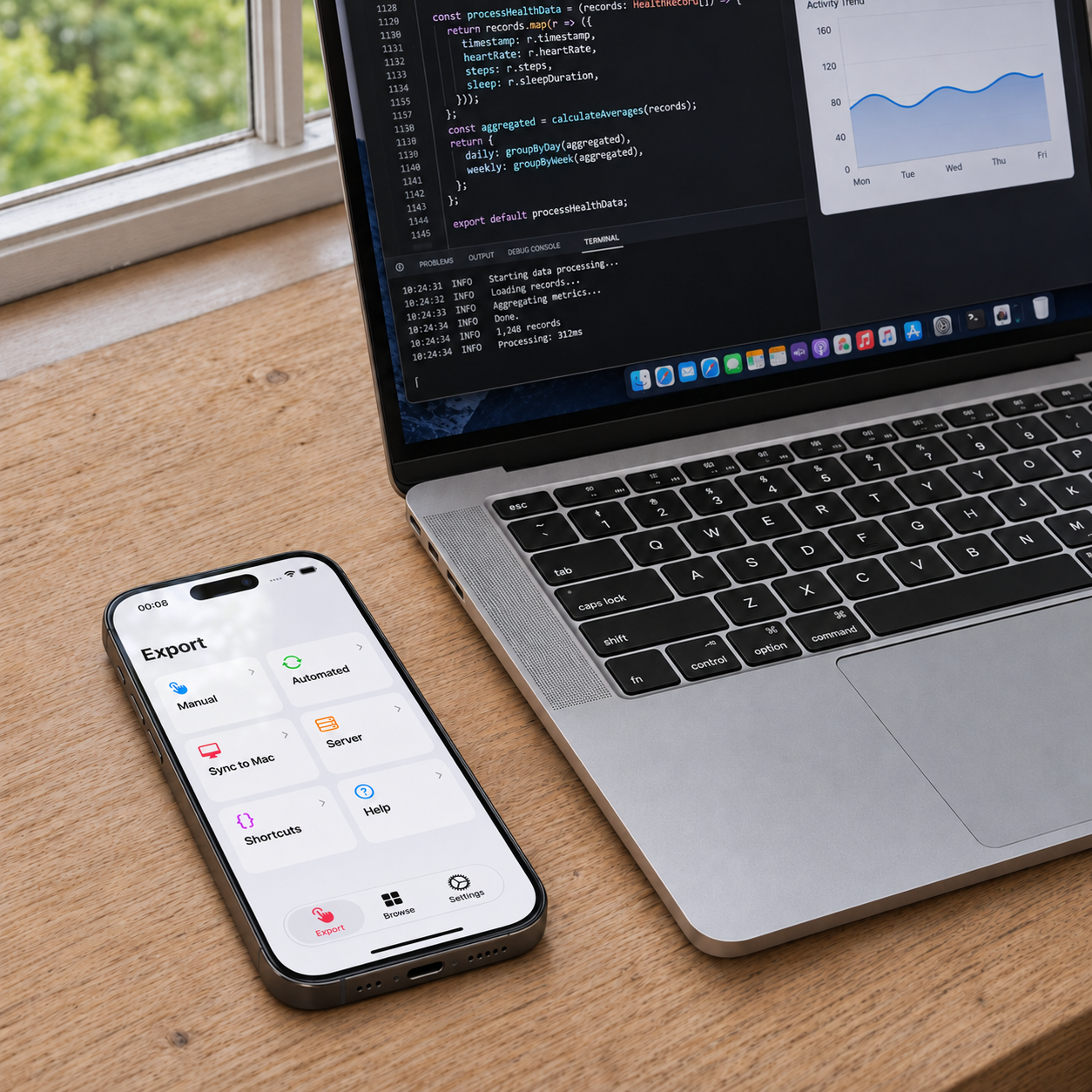
Health Auto Export connects your Apple Health data to compatible AI tools through its built-in MCP server. Ask for daily step totals, explore recorded workouts, or retrieve selected metrics for an analysis without preparing and uploading an export file first.
Bring your data into the conversation
The Model Context Protocol, or MCP, gives AI applications a standard way to request information from connected tools. Health Auto Export uses it to make supported health data available to the client you connect.
For example, you could ask a compatible client to “Show my daily step totals for the past seven days” or “List my workouts from last week.” The client can request the relevant records through Health Auto Export and use the results in its response. What it can present depends on the client and the data available.
Tools such as Claude Code, Codex, Cursor, and VS Code can connect using the setup options provided in the app.
A direct connection over HTTP
Introduced in Health Auto Export v9.0.11, Streamable HTTP support lets compatible clients connect directly to the server. Clients that support this connection do not need the separate Node.js bridge used by legacy TCP setups.
Some clients use a bridge instead. The Server screen provides client-specific configuration, and the setup guide explains which approach to use.
HTTP connections require the bearer token shown in the app. Optional HTTPS encrypts the connection; enable Use HTTPS, then export and trust the app’s certificate on the device running your client. Plain HTTP is unencrypted and should be used only on a trusted network.
Connect from iPhone or Mac
On iPhone, the server makes supported data available over your local network, subject to the app’s health-data access. Keep your client on the same network and Health Auto Export open in the foreground. Moving the app to the background stops the server.
On Mac, the server makes synced health metrics and workouts available to clients running on that same Mac. It uses data supplied through Sync to Mac, so the available records depend on what has synced from your iPhone.
The server returns requested health data to the client you connect. If that client uses a cloud AI service, its handling of that data depends on the service’s settings and policies.
Get started
The MCP server is included with Health Auto Export Premium. On iPhone, open Export → Server, choose HTTP, and select Start Server. Use the endpoint and bearer token shown in the app to configure your client. If you enable HTTPS, complete the certificate setup before connecting.